Buttons and widgets
Collection button
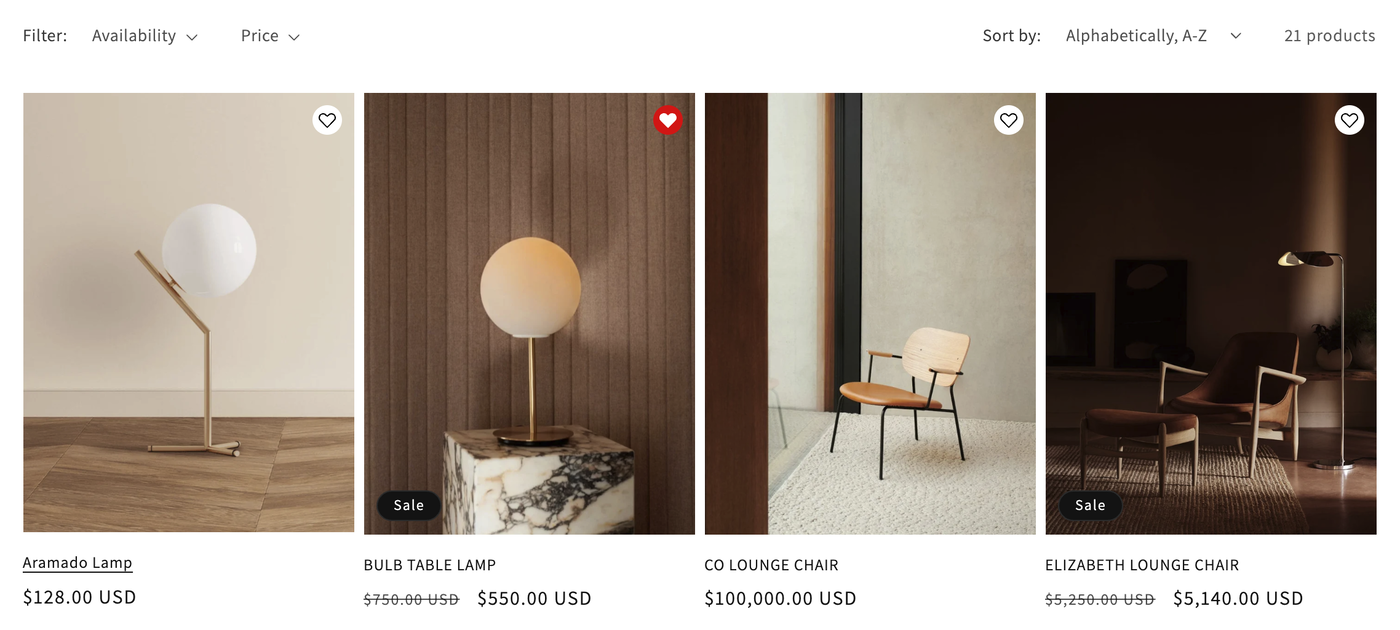
A heart on every product card, so shoppers can save from collection pages, search results and anywhere else your theme shows a product grid.
The collection button sits on top of each product card. Shoppers tap it without opening the product, and the heart fills to show the product is saved.
Turn it on
- In XB Wishlist, open Features.
- Find the Collection Wishlist Button card and tick Enable.
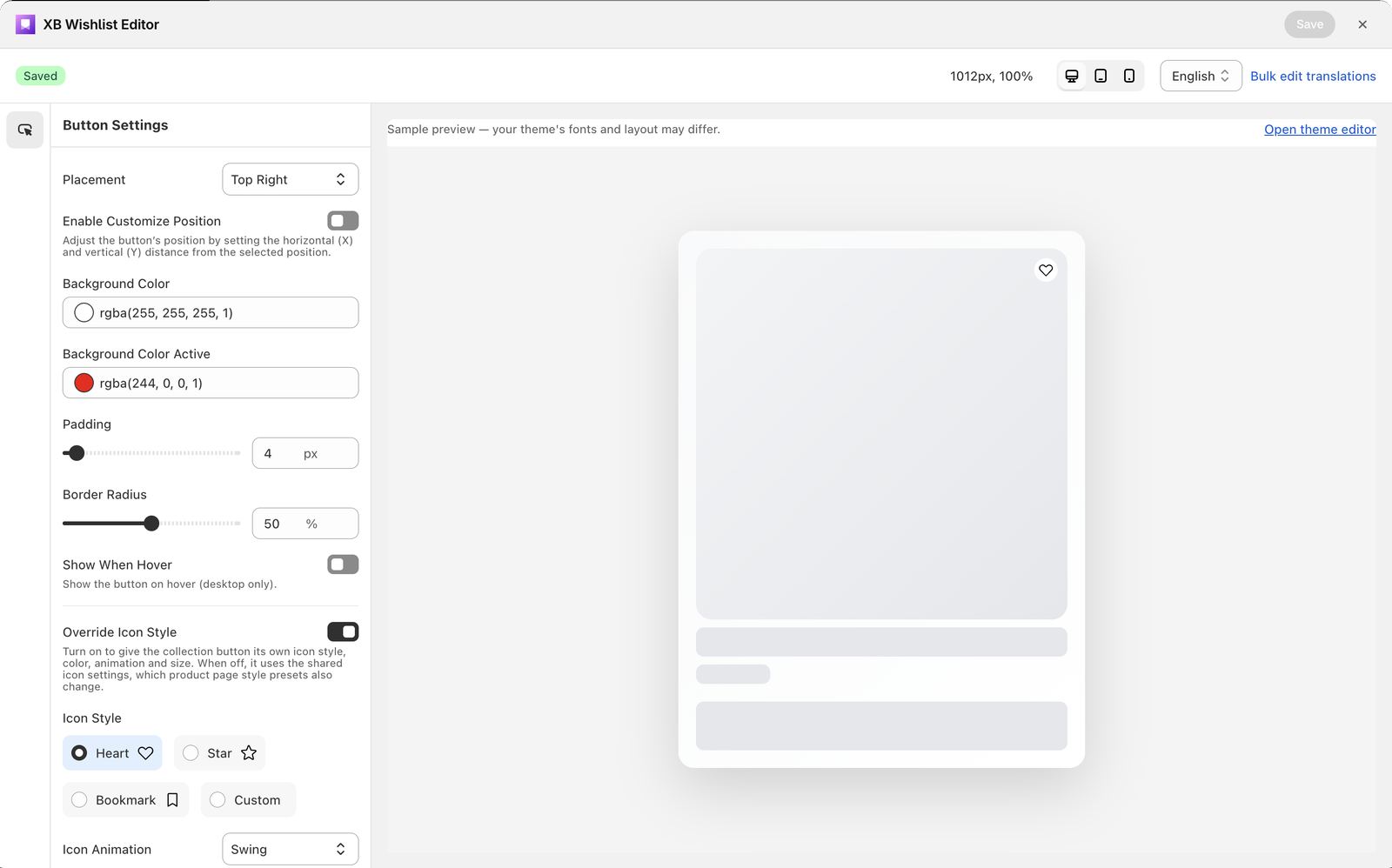
The button shows on product cards as soon as the app embed is on. To change how it looks, click Customize on the card. The editor opens on Button settings.
Settings
| Setting | What it does | Default |
|---|---|---|
| Placement | Where the heart sits on the card: Top, Middle or Bottom, combined with Left, Center or Right. Pick Custom Position to set it yourself. | Top Right |
| Enable Customize Position | Nudges the button away from its placement by Custom X Position and Custom Y Position (0–100 px). | Off |
| Background Color | The circle behind the heart. | White |
| Background Color Active | The circle once the product is saved. | #ff4757 |
| Padding | Space between the heart and the edge of its circle (0–100 px). | 4 px |
| Border Radius | 50% is a circle, 0% a square. | 50% |
| Show When Hover | Hides the button until the shopper hovers the card. Desktop only: on phones the button always shows, because there is no hover. | Off |
| Override Icon Style | Gives this button its own icon, colors, animation and size. When off, it uses the shared Wishlist icon settings. | Off |
Click Save in the Shopify save bar at the top when you are done.
If the hearts don't appear on your cards
XB Wishlist finds product cards automatically on Dawn and most themes built like it. Some themes build their cards differently, and the editor then shows a banner saying wishlist buttons may not appear on product cards automatically.
Your header icon and product page button still work in that case. Click Contact support in the banner, or email us. We add support for your theme for free, usually within a business day.
Hide the button for some products
To keep the button off certain products (gift cards, samples, items you can't restock), use Hide wishlist button. It removes the button from collection cards and product pages together.
Still stuck? Email [email protected] with your store’s .myshopify.com address and we’ll set it up with you.