Grow
Customers
See who saved what, look up any shopper's wishlist, and add or remove products for them.
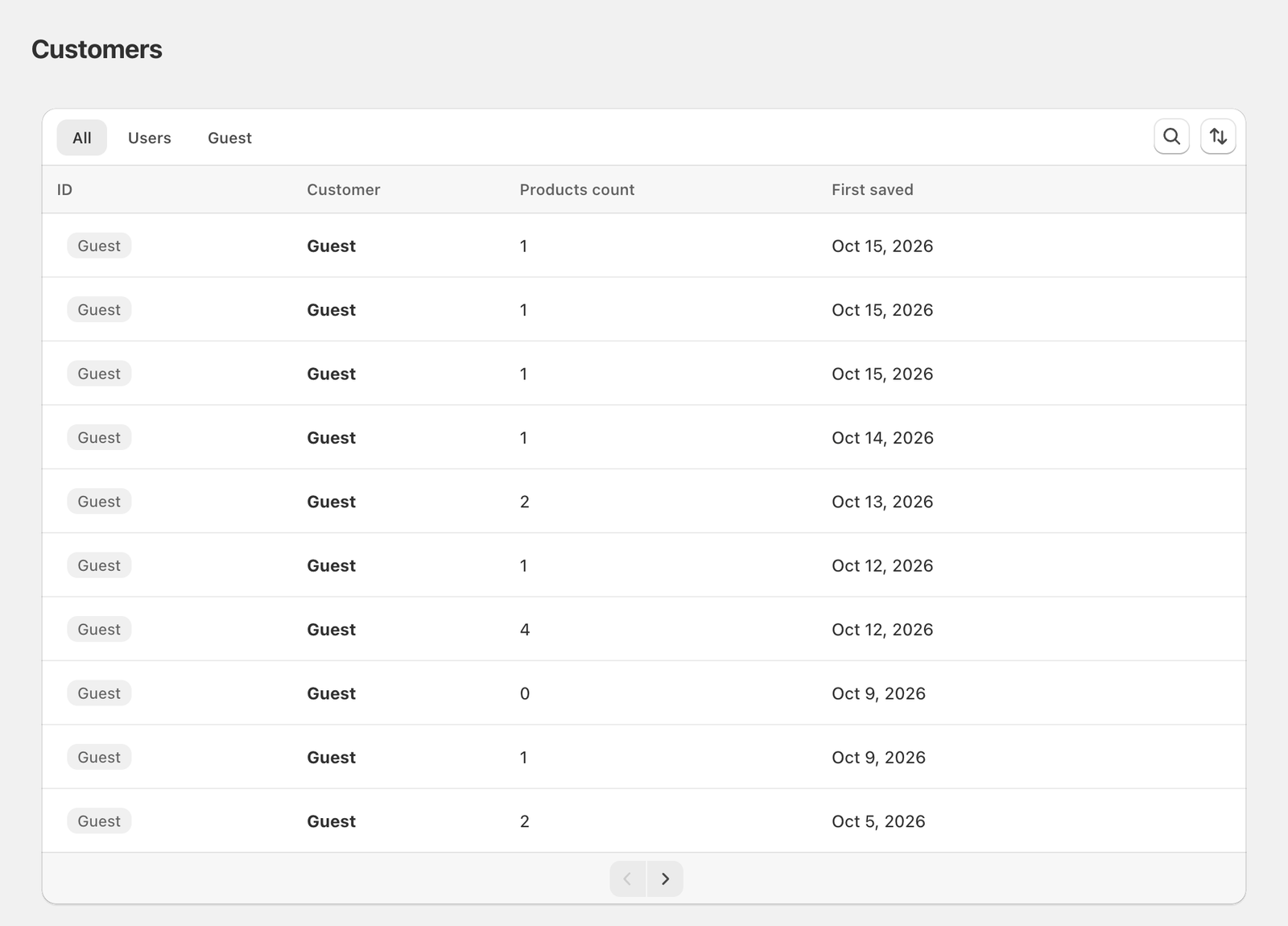
The Customers page lists everyone who has a wishlist on your store: signed-in customers and guests.
Find a customer
- The tabs filter by All, Users (signed-in customers) or Guest.
- Search by name, email, customer ID, or a guest's full session ID.
- Sort by First saved, oldest or newest first.
Each row shows the number of saved products and when the customer first saved something. Guests have a Guest badge. Not in Shopify means the customer record was deleted in Shopify, but their wishlist is still here.
From a row you can open the customer in Shopify admin, or View wishlist products.
A customer's wishlist
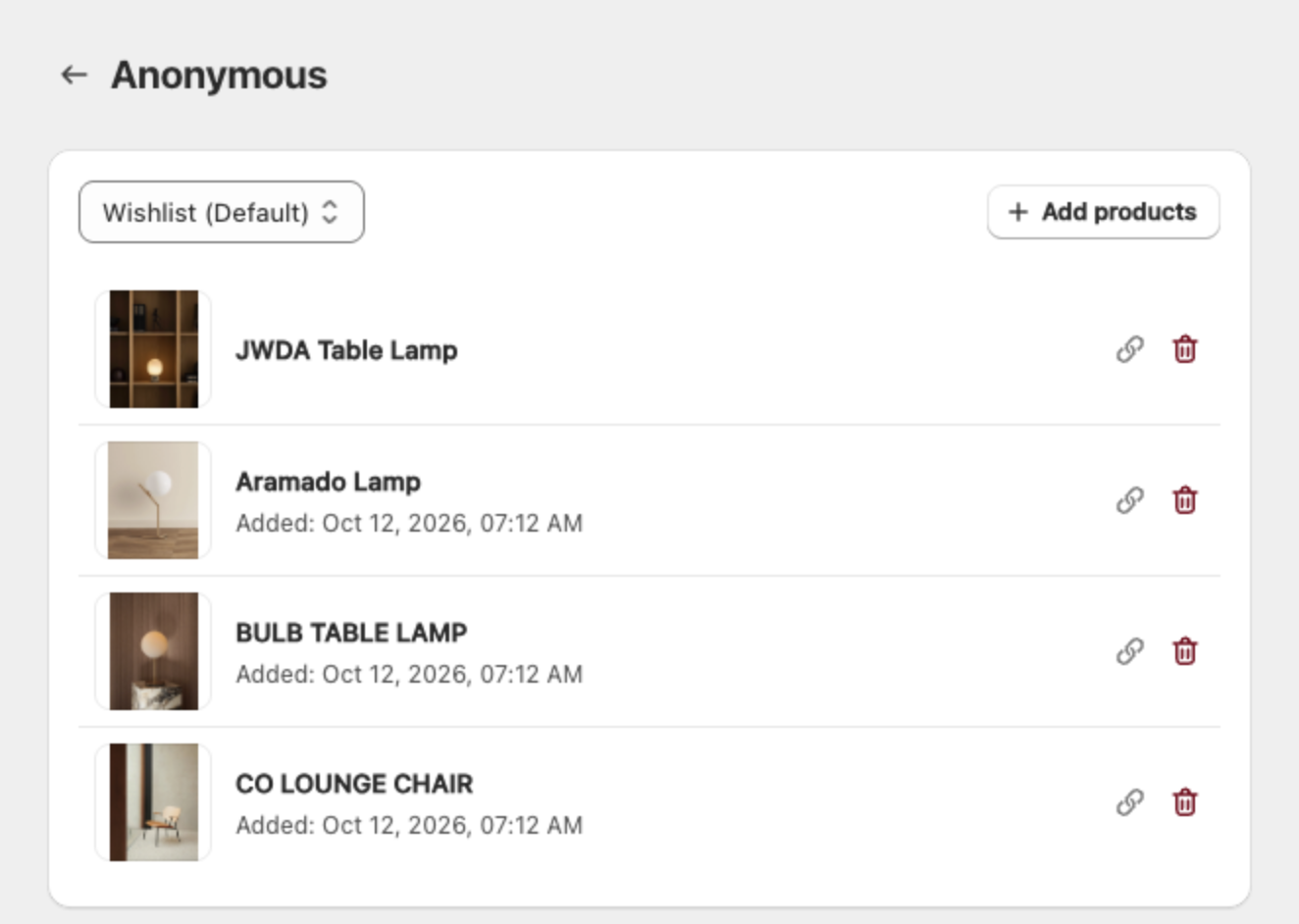
- If the customer has several wishlists, pick one from the selector. (Default) marks the one new items go into.
- Add products opens Shopify's product picker. Use it to save products for a customer, for example after a call or an in-store visit.
- Remove a product from the list. The customer won't see it on the storefront anymore.
- If some saved products were deleted or unpublished, a warning shows how many. Remove clears them out.
Import wishlists for one customer
Import wishlists on this page fills a customer's wishlists from a CSV with two columns:
product_handle,wishlist_name
wool-overshirt,Winter
stoneware-mug,Kitchen
brass-desk-lamp,
An empty wishlist_name puts the product in the default wishlist. Download sample gets a template. Validate file shows what will happen to each row before anything is saved: New, Add to existing or Skipped. Then click Import. A customer can have up to 5 wishlists.
To import wishlists for many customers at once, use Import and export.
Still stuck? Email [email protected] with your store’s .myshopify.com address and we’ll set it up with you.