Get started
Tour of the admin
Where everything lives in XB Wishlist, from the Home page and the Features page to each menu item.
The menu
| Menu | What's there |
|---|---|
| Home | App embed status, the setup guide, a 30-day summary, import and export |
| Wishlist | Wishlist products: every product saved on your store, with how many times it's saved. Sort it by title or by quantity. |
| Analytics (Advanced analytics on paid plans) | Saves, add to cart and revenue. See Analytics. |
| Customers | Everyone with a wishlist, and what they saved. See Customers. |
| Features | Every feature, with its switch and its settings |
| Plans | Your plan, upgrades and downgrades. See Plans and billing. |
Email Marketing and Translations don't have their own menu item. Open them from their cards on the Features page.
Home
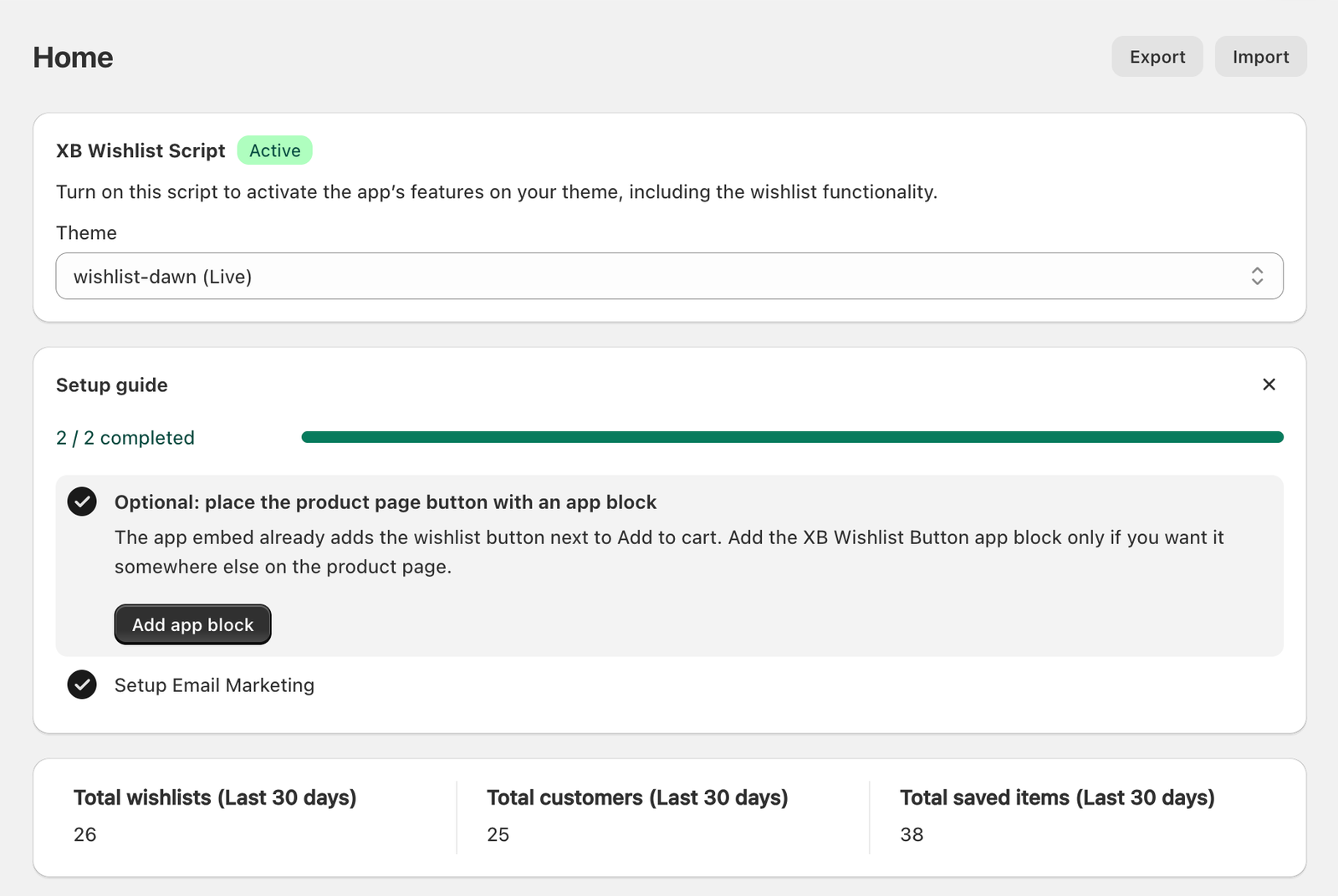
- XB Wishlist Script shows whether the app embed is Active on your theme, with an Activate button if it isn't.
- Setup guide lists what's left to do, with a button for each task. Dismiss it when you're done. Show setup guide at the top brings it back.
- The last 30 days: total wishlists, customers with a wishlist and saved items.
- Import and Export at the top move wishlists in and out as CSV. See Import and export.
- What's new shows the latest changes. The full list is in the changelog.
Features
Every feature has a card on the Features page. Use the search box ("back in stock", "POS"…) or the tabs (Buttons, Widgets, Wishlist page, Features) to find one.
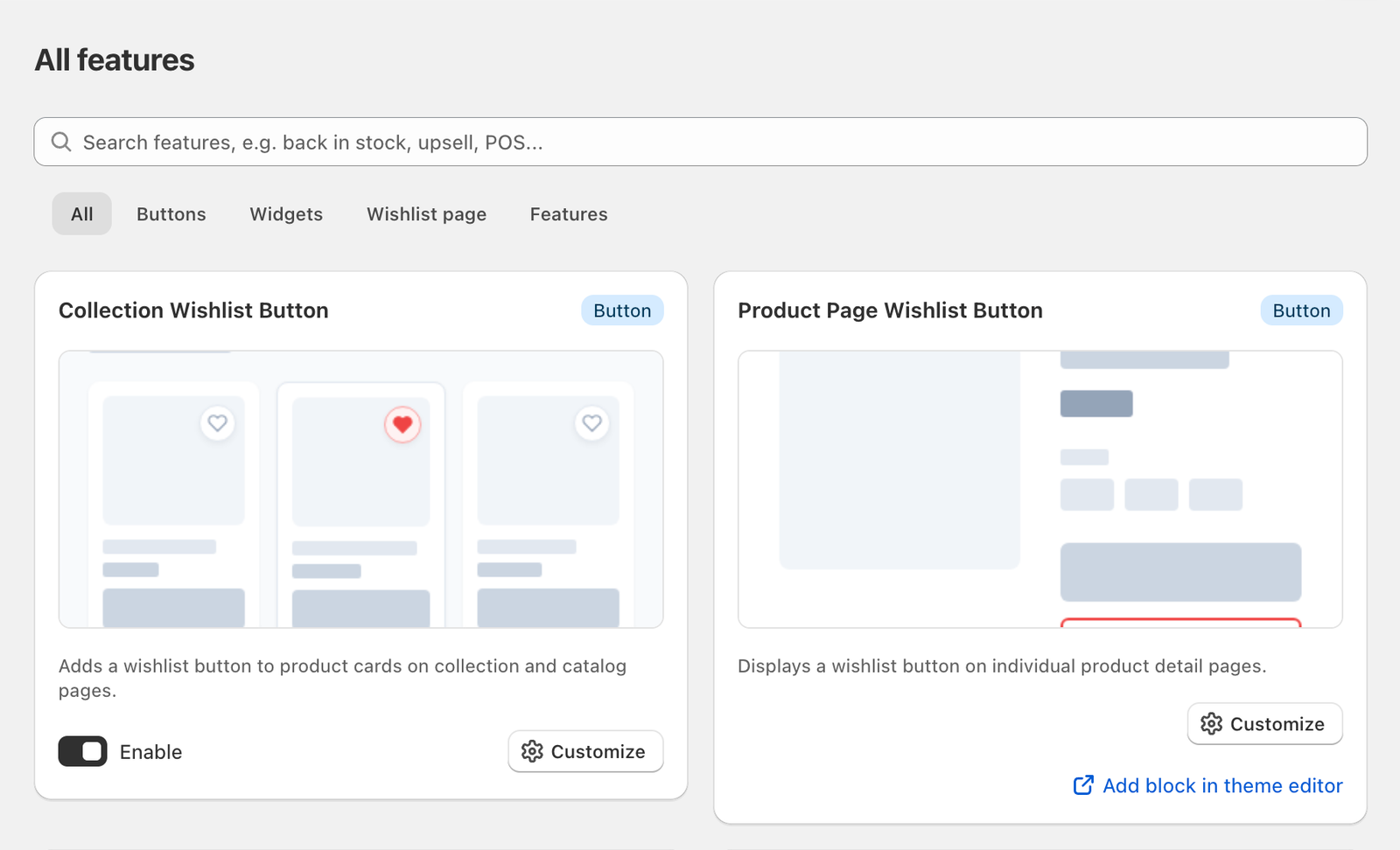
On each card:
- Enable turns the feature on or off on your storefront. Cards without the checkbox are always available, like the wishlist page and custom code.
- Customize opens its settings, in a small window or in the full-screen editor.
- Add block in theme editor appears on features you can place with an app block.
- A lock and an Upgrade button mean the feature is part of a higher plan.
The editor
Buttons, the wishlist page, notifications, save for later and recommendations open in the full-screen XB Wishlist Editor: settings on the left, a live preview on the right.
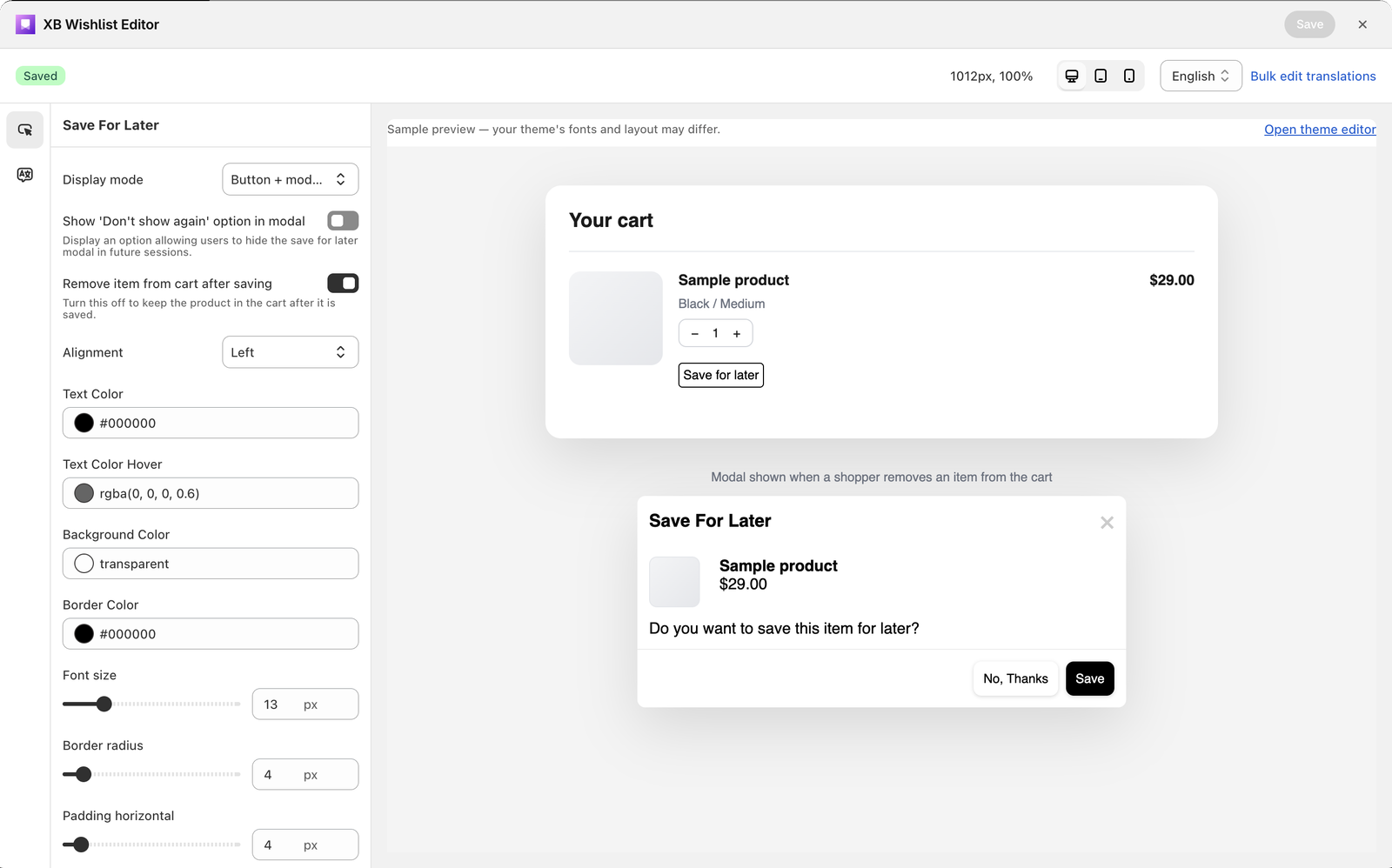
- Switch the preview between desktop and mobile with the device buttons at the top.
- Switch Language to edit texts in another language. See Translations.
- The badge shows Saved or Unsaved. Save with the Shopify save bar.
Two small switches
Two cards don't have a page of their own:
- Show Tooltips shows the helper tooltips across wishlist features on your storefront. Untick it to hide them.
- Wishlist Analytics records wishlist activity for the Analytics page. Leave it on unless you have a reason not to track.
Still stuck? Email [email protected] with your store’s .myshopify.com address and we’ll set it up with you.