Developers
Custom CSS and JavaScript
Add your own CSS and JavaScript to the storefront when the built-in settings don't go far enough.
Most styling is in the editors. When you need something they don't cover, such as a font, a spacing tweak for your theme or a small behavior change, add your own code. It loads on every storefront page with XB Wishlist, and it is available on every plan.
Add code
- Open Features and find the Custom Code card.
- Click Customize.
- Write your code in the Custom CSS or Custom JavaScript tab.
- Click Save.
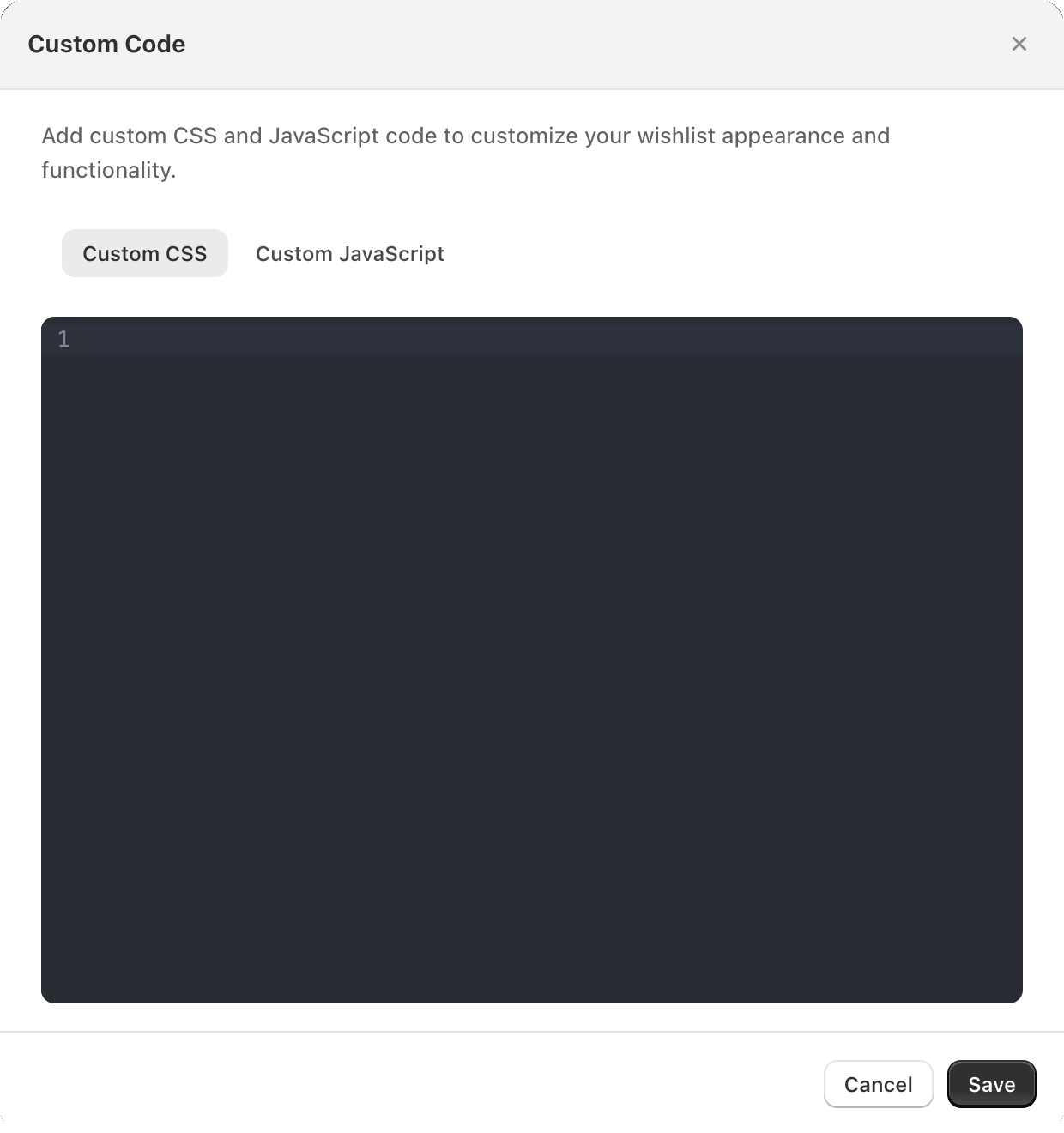
There is no on/off switch: code you save is live. To turn it off, delete it and save.
XB Wishlist checks the code when you save. If it can't be parsed, you get Invalid CSS code or Invalid JS code and nothing is saved, so a typo can't break your storefront.
CSS examples
Make the collection heart smaller on phones:
@media (max-width: 749px) {
  xb-wishlist-button-collection {
    transform: scale(0.85);
    transform-origin: top right;
  }
}
Use your theme's font on the wishlist page (--font-body-family is the variable Dawn and themes built on it use):
xb-wishlist-page {
  font-family: var(--font-body-family);
}JavaScript
Your JavaScript runs on every page where the XB Wishlist app embed is on. An error in it is caught, so it can't stop the wishlist from working.
To react to what shoppers do, listen to the events in JavaScript events instead of watching the page for clicks.
Still stuck? Email [email protected] with your store’s .myshopify.com address and we’ll set it up with you.