Wishlist page
Wishlist page options
Layout, what each saved item shows, sharing, and how shoppers move items to the cart.
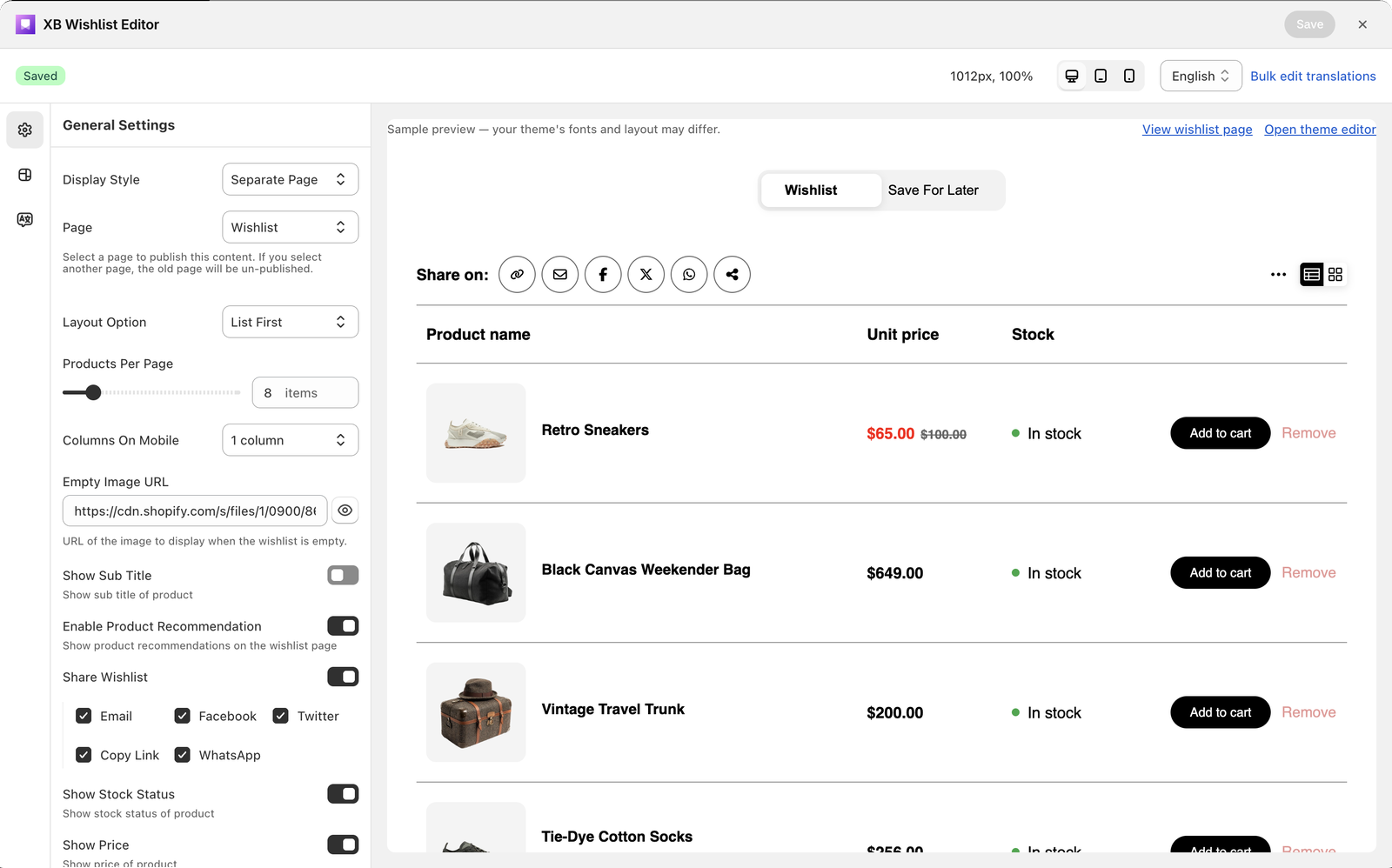
All of these are in Features → Wishlist Page → Customize → General settings. The preview on the right updates as you change them. Click Save in the Shopify save bar when you are done.
Layout
| Setting | Options | Default |
|---|---|---|
| Layout Option | List, Grid, List First or Grid First. The last two let shoppers switch, starting on the one you pick. | List |
| Products Per Page | How many items show per page, 1–50 | 8 |
| Columns On Mobile | 1 column or 2 columns for the grid on phones | 1 column |
| Empty Image URL | An image shown when the wishlist is empty. Upload it in Content → Files in Shopify and paste its URL. | |
| Show Sub Title | The line of text under the title | On |
What each item shows
| Setting | Default | |
|---|---|---|
| Show Stock Status | In stock / Out of stock | On |
| Show Price | The price, and the compare-at price when there is one | On |
| Show SKU | The variant's SKU | Off |
To hide the price of only some products, use Hide price on wishlist.
Add to cart
| Setting | What it does | Default |
|---|---|---|
| Remove When Add To Cart | Takes the item off the wishlist once it's in the cart | Off |
| Continue Add To Cart | Keeps the shopper on the wishlist after adding: the cart drawer doesn't open and the cart page doesn't load | Off |
| Hide Add to Cart Buttons | No add-to-cart buttons at all: the wishlist becomes a list to browse | Off |
| Enable Bulk Add to Cart | Adds an Add products to cart option: shoppers tick items (or Select all) and add them in one go. Sold-out items are skipped. | Off |
| Enable Quick Add | Adds a search box on the wishlist, so shoppers can find products and save several at once without leaving it | Off |
| Hide Add to Cart Selectively | Hides add to cart for chosen products, product types or tags. Basic plan. | |
| Enable XB Quote Request | Adds a Request a Quote button, for stores that use the XB Quote Request app | Off |
With Separate Page, Open In New Tab also appears: the header icon and floating button open the wishlist page in a new tab, so shoppers keep the page they were on.
Sharing
Share Wishlist lets shoppers send their wishlist to someone else. Choose the channels: Email, Facebook, Twitter, Copy Link and WhatsApp. On phones, the device's own share sheet is offered too.
The person who opens the link sees the saved products on your store, read-only and without needing an account. It's handy for gift lists and for asking a friend's opinion. To let others edit a list together, see collaborative wishlists.
Product recommendations
Enable Product Recommendation shows a row of products under the wishlist. It needs the Pro plan and is set up in Product recommendations.
Wording
Every text on the wishlist page is in Language settings: the title, the empty-wishlist message, button labels, stock labels, share texts and more. Switch the Language selector at the top to edit each language, or use Translations to do them all in a spreadsheet.
Still stuck? Email [email protected] with your store’s .myshopify.com address and we’ll set it up with you.