Get started
Install XB Wishlist
Install the app, turn on the app embed in your theme, and check that the wishlist shows on your store.
Installing takes about two minutes. A short setup wizard walks you through it, and you can leave it at any point and come back.
Install the app
- Open XB Wishlist on the Shopify App Store and click Install.
- Approve the permissions. The setup wizard opens: Welcome to XB Wishlist.
The wizard has four steps. Until you finish or skip it, the app's menu stays hidden.
Step 1: Turn on the app embed
XB Wishlist runs on your store through a theme app embed. It is a switch in your theme that loads the wishlist on every page. Nothing shows on your store until it's on.
If you have more than one theme, choose the one to set up under Theme. Usually that's your live theme.
Click Open theme editor. The theme editor opens in a new tab, on App embeds.
Switch on XB Wishlist Scripts and click Save.
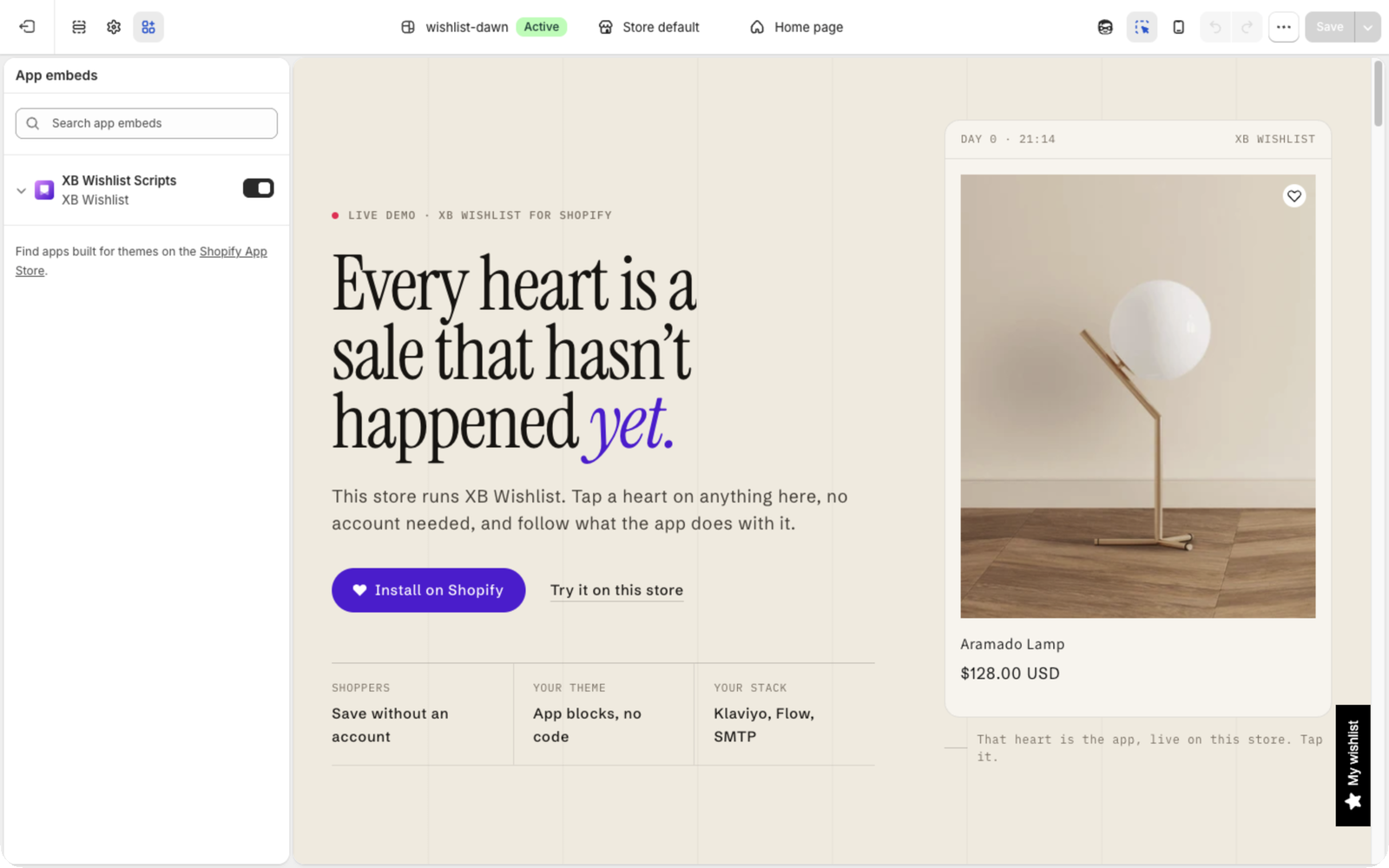
Theme editor → App embeds → XB Wishlist Scripts Go back to the XB Wishlist tab. The status changes to App embed is on within a couple of seconds, without a reload.
Step 2: Check your theme
XB Wishlist checks whether your theme supports automatic placement of the header icon and the buttons on product cards. Each one shows Automatic or Needs setup.
- All automatic? Use the links under Preview on your store to see the heart in your header, on a collection and on a product.
- Something needs setup? Click Request Integration Support. If your store has a password, add it so we can see your storefront. We usually set up your theme within 30 minutes to an hour during business hours, for free.
The product page button works on every theme, whatever the check says.
Step 3: Customize (optional)
Open the editor for the Collection button, the Product page button or the Wishlist page if you want to change the look now. The default design works well, so most stores skip this step and come back later from Features.
Step 4: Choose a plan
Start on Free, or start a 7-day free trial of Basic or Pro. You can change plans at any time. See Plans and billing.
Click Get started to finish. You land on the Home page, and the app menu appears.
Skipped the wizard?
Skip setup takes you straight to the app, and nothing is lost. Turn the app embed on from the XB Wishlist Script card on the Home page: choose the theme, click Activate, then switch it on and save in the theme editor. The Features page also shows a banner, Wishlist isn't live on your store yet, until the embed is on.
Check that it works
Open your store in a private window, so you see it the way a new shopper does:
- There is a heart on product cards in a collection.
- There is an Add to wishlist button on a product page.
- Tapping either one saves the product, and the header icon count goes up.
- Clicking the header icon opens the wishlist.
If something is missing, see Troubleshooting.
Still stuck? Email [email protected] with your store’s .myshopify.com address and we’ll set it up with you.