Grow
Import and export
Bring wishlists over from another app with a CSV, or download every wishlist on your store.
Both live on the Home page, in the Import and Export buttons at the top. Both are on every plan, Free included.
Import from another wishlist app
Export the wishlists from your old app as CSV, then import that file. You don't have to rename columns to match XB Wishlist exactly: common names from other apps are recognized.
What the file needs
Each row is one saved product for one customer.
| Column | Required | Also accepted as |
|---|---|---|
customer_email or customer_id | One of the two | email, user_email, user_id |
product_handle or product_id | One of the two | handle, productid |
variant_id | No. Without it, the product's first variant is saved. | |
added_at | No. Without it, the import date is used. | Any column with "added" or "created" in its name |
customer_email,product_handle,variant_id,added_at
[email protected],wool-overshirt,44012345678901,2026-03-14
[email protected],stoneware-mug,,2026-04-02
[email protected],field-watch,,- The customer must already exist in your Shopify store. Rows for unknown customers are skipped.
- Items go into the customer's default wishlist.
- A file exported from XB Wishlist can be imported as it is.
Download sample CSV in the import window gives you a template.
Steps
- Click Import on the Home page and choose your file.
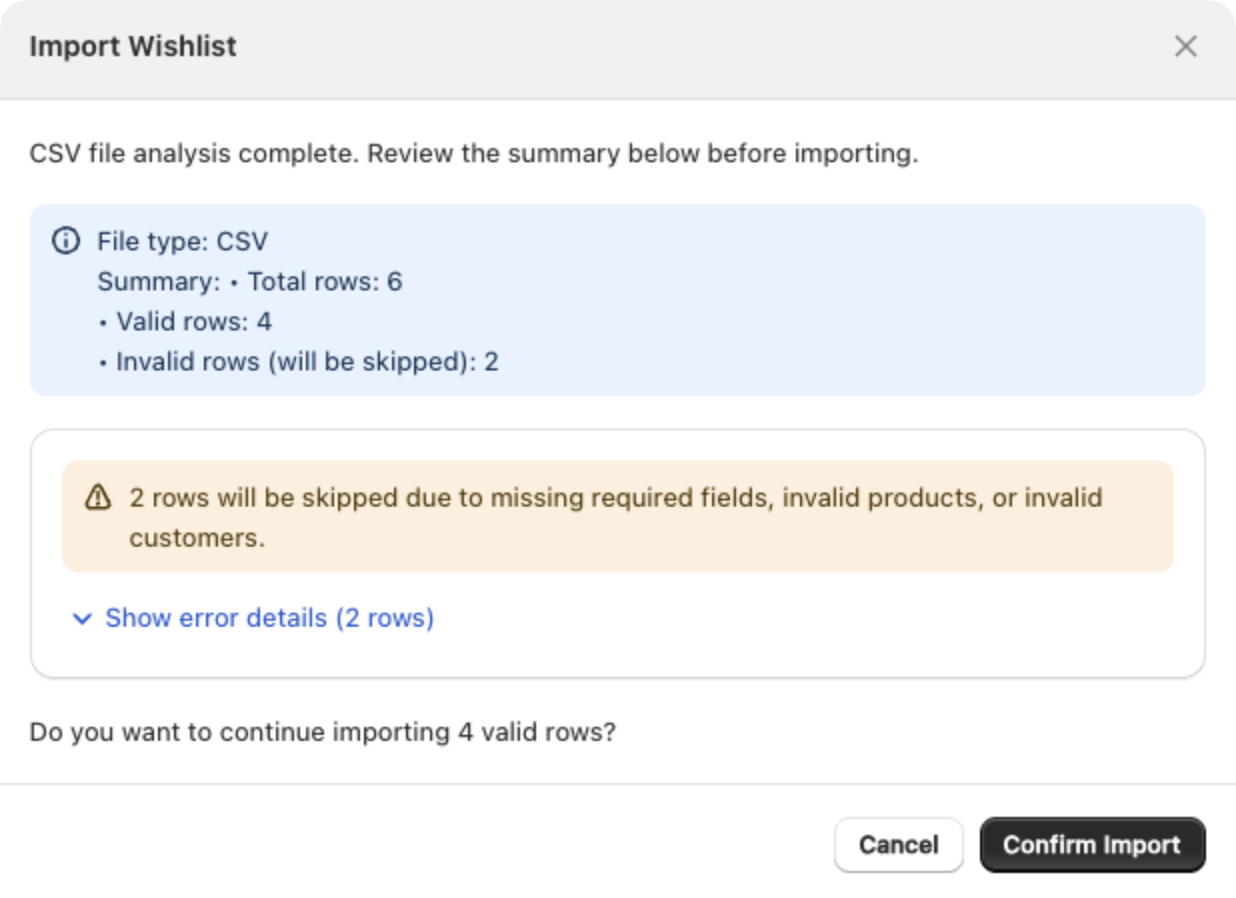
- Click Analyze File. XB Wishlist checks every row in the background and shows a summary: total rows, valid rows, and invalid rows that will be skipped.
- Optional: Run preview does a dry run. It shows what would be imported without saving anything.
- Click Confirm Import. Large files run in the background with a progress bar. You can leave the page.
- When it finishes, the report shows what was imported. Download
wishlist-import-errors.csvto see each skipped row and why.
If your old app exports something XB Wishlist can't read, email us the file. We'll map it for you.
Export
Click Export on the Home page.
- Leave the filters empty to download everything.
- Customer ID: download one customer's wishlists. A guest's session ID works too.
- Date Range: only items saved in that period.
The file has one row per saved product:
customer_id,customer_email,session_id,wishlist_name,product_id,variant_id,title,added_atGuests have a session_id and no customer. Emails are filled in for the first 5,000 customers in the file.
Still stuck? Email [email protected] with your store’s .myshopify.com address and we’ll set it up with you.