Features
Save for later
Catch the items shoppers take out of their cart, and park them in the wishlist instead of losing them.
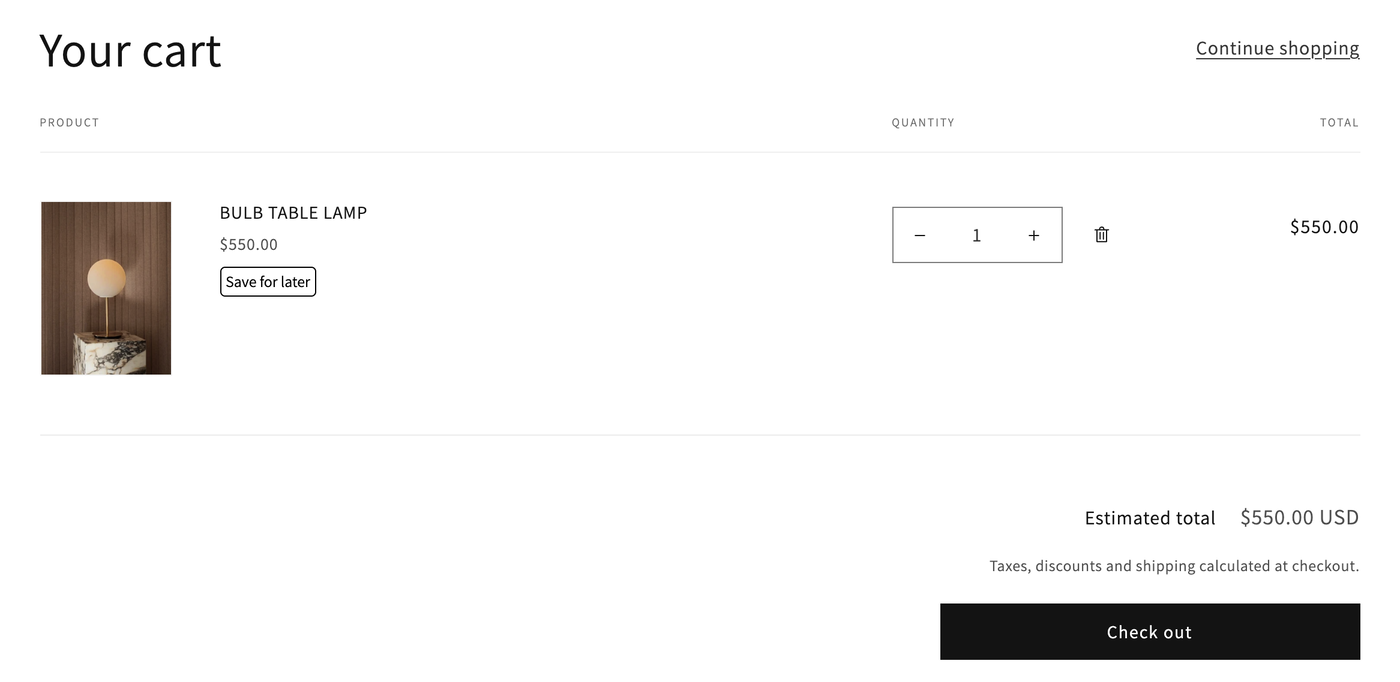
When a shopper removes something from their cart, it usually means "not now", not "never". Save for later offers to keep it in their wishlist, either as a button on each cart item, as a prompt when they remove it, or both.
Turn it on
- Open Features and tick Enable on the Save For Later card.
- Click Customize to choose how it shows.
It works on the cart page and in the cart drawer.
Display mode
| Mode | What shoppers see |
|---|---|
| Button in cart item only | A Save for later button on every cart item |
| Button + modal when removing an item | The button, plus a prompt when they remove an item: Do you want to save this item for later? |
| Modal when removing an item only (default) | Only the prompt, when they remove an item |
Other settings
| Setting | What it does | Default |
|---|---|---|
| Show 'Don't show again' option in modal | Lets shoppers turn the prompt off for themselves | Off |
| Remove item from cart after saving | Takes the item out of the cart once it's saved. Turn off to keep it in both. | On |
| Button position | Where the button goes in the cart item: inside the product details (at the start or the end), or before or after them | Inside, at the end |
| Style | Alignment, text and hover colors, background, border, font size, radius, padding and margin |
Under Language settings, edit the button's texts (Save for later, Saving..., Saved) and the prompt's title, message and buttons.
If the button doesn't show in your cart
XB Wishlist finds cart items on most themes on its own. If yours isn't detected, tell it where cart items are:
- In the theme editor, open App embeds → XB Wishlist Scripts.
- In Cart Item Selector, enter a CSS selector that matches one cart item row, for example
.cart-item. Separate several with commas. - Save.
Or email us and we'll set it up. If your cart drawer doesn't refresh after an item is saved, see JavaScript events.
Still stuck? Email [email protected] with your store’s .myshopify.com address and we’ll set it up with you.