Grow
Email marketing
Email shoppers when something on their wishlist comes back in stock, drops in price or is about to sell out. Send through XB Wishlist, your own SMTP, Klaviyo or Shopify Flow.
A wishlist tells you exactly what a shopper wants. Email marketing turns that into a message at the right moment: the day the size they saved is back, the day the price drops, or the week it is almost gone.
Email marketing needs the Basic plan. Two reminder emails need Pro. See the event list below.
Before you start
- Only signed-in customers get emails. XB Wishlist needs the customer's email from their Shopify customer account. Guest wishlists are kept, but their owners can't be emailed.
- The events cover products saved while you are on Basic or Pro. Stock and price alerts compare against a snapshot taken when the product is saved. Products saved on the Free plan get their snapshot the first time their stock or price changes, and alerts work from then on.
Set it up
Open Features → Email Marketing.
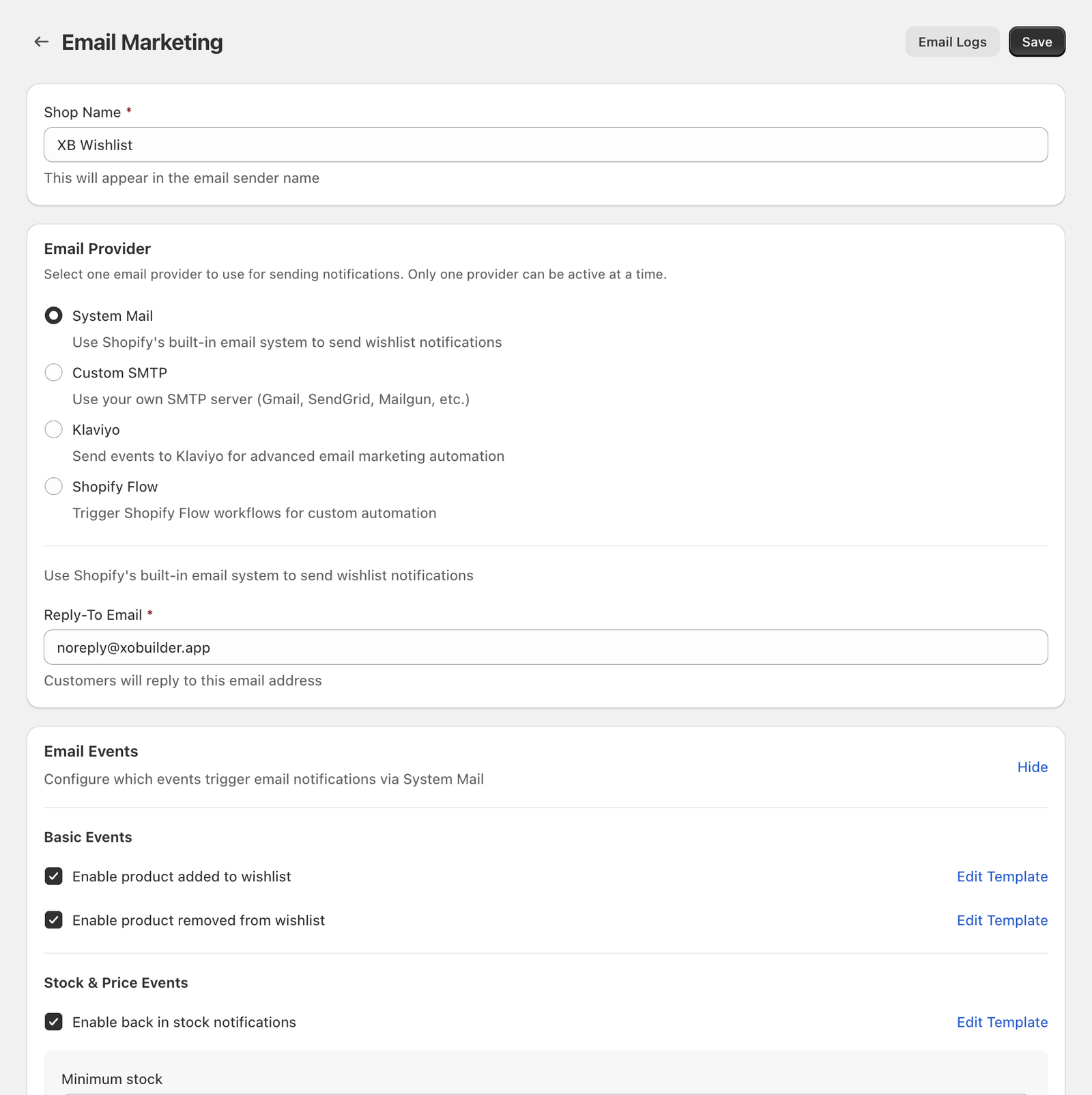
- Shop Name: the sender name shoppers see in their inbox.
- Email Provider: choose one. Only one provider sends at a time.
- Email Events: tick the events you want, and set their conditions.
- Click Save.
Choose a provider
| Provider | Best for | You edit the email in |
|---|---|---|
| System Mail | Getting started with nothing to set up. XB Wishlist sends for you. | XB Wishlist |
| Custom SMTP | Sending from your own domain through Gmail, SendGrid, Mailgun and others. | XB Wishlist |
| Klaviyo | Stores that already run their email in Klaviyo. | Klaviyo |
| Shopify Flow | Any custom automation: tag the customer, send to Slack, use another email app. | Shopify Flow |
System Mail
Fill in Reply-To Email, the address that receives customers' replies. Emails are sent from XB Wishlist's mail server with your Shop Name as the sender name.
Custom SMTP
| Field | Example |
|---|---|
| SMTP Host | smtp.gmail.com |
| Port | 587, or 465 with SSL |
| Use secure connection (SSL/TLS) | On for port 465, off for port 587 |
| Username / Password | Your SMTP login. For Gmail, use an app password, not your account password. |
| From Email | The address emails come from |
XB Wishlist connects to your server when you click Save. If it can't, you see "Failed to connect to SMTP server" and nothing is saved. Check the host, the port and SSL pair, and the password.
Klaviyo
- Fill in Klaviyo Public API Key (Site ID) and Klaviyo Private API Key. The page links to Klaviyo's guide for finding both.
- Click Save. The private key is checked against Klaviyo.
- Optional: click Sync Existing Customers. Every customer's profile is sent to Klaviyo with a
$wishlist_countproperty, so you can segment on it right away.
Each event you enable is sent to Klaviyo as a metric: addToWishlist, removeFromWishlist, backInStock, lowInStock, priceDrop and abandonedWishlistReminder. Build a flow in Klaviyo triggered by that metric. The event carries the product's name, price, image and URL for your template.
Shopify Flow
Choose Shopify Flow, then tick the triggers to send under Configure Triggers. An event reaches Flow only when it is ticked there and enabled under Email Events. Open Shopify Flow takes you to Flow, where four ready-made templates are waiting. More in Shopify Flow.
Events
All events start off. Tick one to turn it on and show its settings.
| Event | Plan | Sent when |
|---|---|---|
| Product added to wishlist | Basic | A signed-in customer saves a product |
| Product removed from wishlist | Basic | A signed-in customer removes a product |
| Back in stock | Basic | A saved variant's stock rises to your minimum |
| Low stock | Basic | A saved variant's stock falls below your threshold |
| Price drop | Basic | A saved variant's price falls by your percentage |
| Abandoned wishlist reminder | Pro | An item has sat in the wishlist for your number of days |
| Periodic wishlist review | Pro | On a weekly, bi-weekly or monthly schedule |
Back in stock
- Minimum stock (default 1): the email goes out when a variant's stock goes from below this number to this number or more. Set it to 3 if you don't want to announce a single last unit.
- Notify for all variants: when on, a customer who saved the product is told when any variant is back, not only the one they saved.
Low stock
Sent once, when stock falls through your threshold.
- Stock threshold (default 5): alert when stock drops from this number or more to below it.
- Minimum stock (default 1): no alert once stock is under this number. Use 0 to alert all the way down to the last item.
Price drop
- Price threshold (%) (default 10): send when the price falls by at least this much. 10 means a $100 item must drop to $90 or less.
- Minimum stock (default 1): only send if the variant has at least this many in stock. Use 0 to announce price drops on sold-out items too.
Abandoned wishlist reminder (Pro)
- Delay (days) (default 3): the reminder goes out when an item has been in the wishlist for this many days. It features the most recently saved of those items, and repeats every Delay days while there are still such items in the wishlist.
Periodic wishlist review (Pro)
A digest of the wishlist on a schedule. Choose Weekly, Bi-weekly or Monthly, then the Day of week or Day of month.
Both reminders are sent once a day, around 10:00 UTC.
Edit an email
With System Mail or Custom SMTP, each enabled event has an Edit Template button.
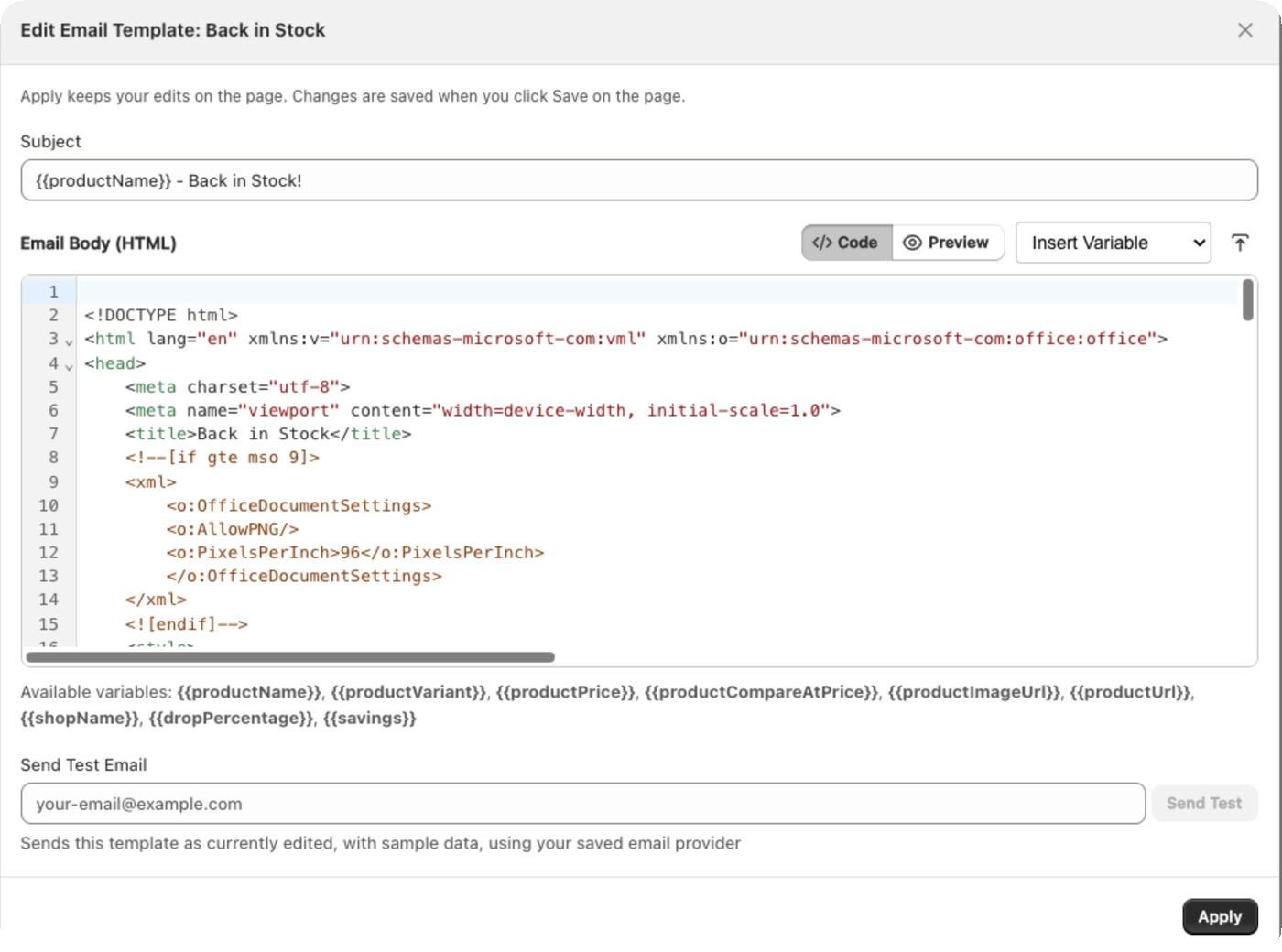
- Subject and Email Body (HTML). Switch between Code and Preview. The preview fills in sample data.
- Insert Variable adds a placeholder at the cursor. You can also upload a
.htmlfile you designed elsewhere. - Apply keeps your edits on the page. They are saved when you click Save on the page.
| Variable | Example |
|---|---|
{{productName}} | Wool overshirt |
{{productVariant}} | Moss / M |
{{productPrice}} | $119.00 |
{{productCompareAtPrice}} | $148.00 |
{{productImageUrl}} | The product image URL |
{{productUrl}} | Link to the product |
{{shopName}} | Your Shop Name |
{{dropPercentage}} | 20 (price drop only) |
{{savings}} | $29.00 (price drop only) |
Show a block only when there is a value with {{#if productCompareAtPrice}} … {{/if}}. Subjects support {{shopName}}, {{productName}} and {{productPrice}}.
Send a test
Inside Edit Template, type an address under Send Test Email and click Send Test. The test uses the template as it is in the editor, with sample data, through your saved provider. Save your provider settings first: the button stays disabled until you do.
Email logs
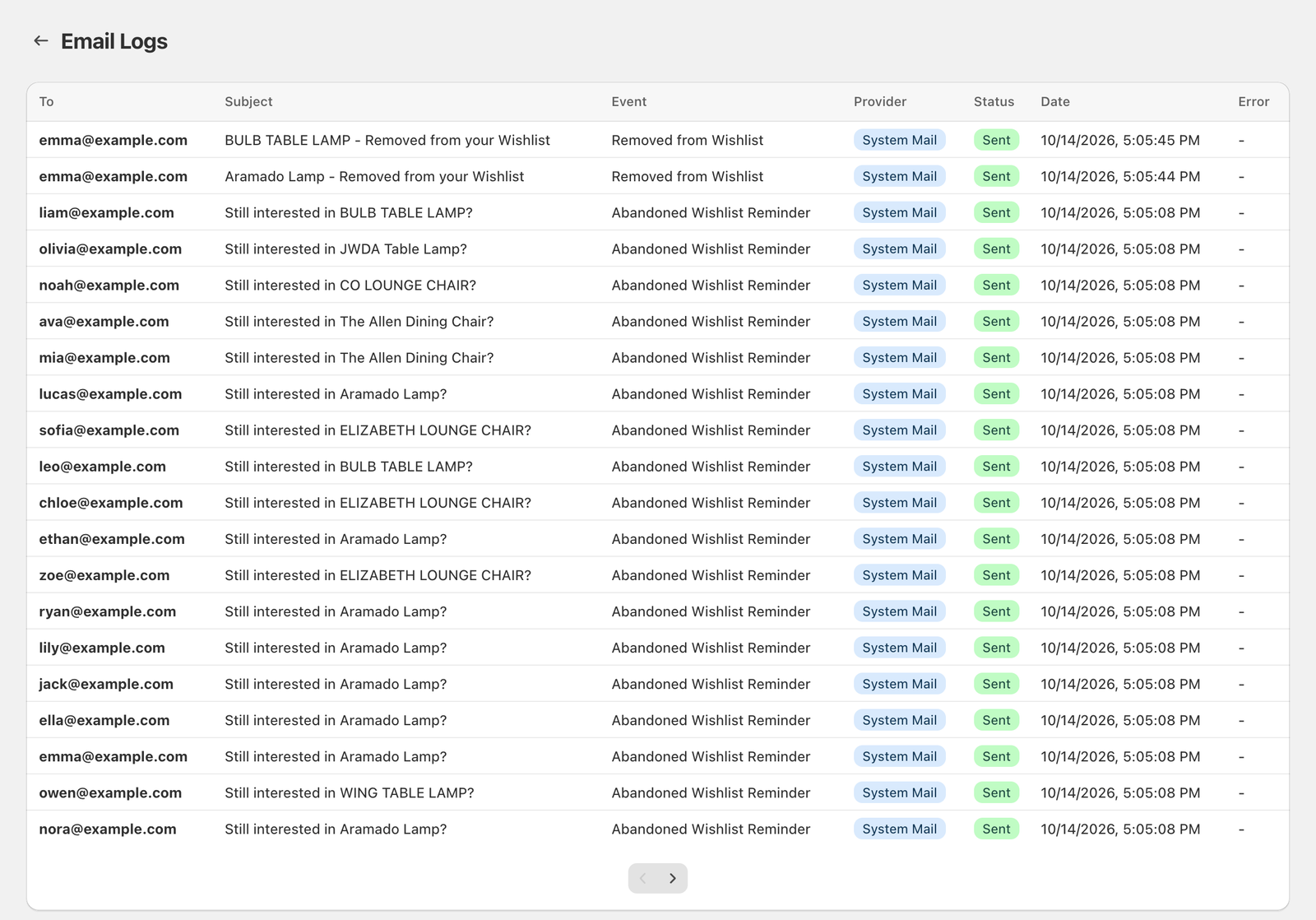
Click Email Logs at the top of the Email Marketing page to see every email sent, with To, Subject, Event, Provider, Status (Sent or Failed) and the Error for failed ones. Klaviyo and Flow events show here too, with a subject like [Klaviyo Event] backInStock.
Limits
- Up to 100 emails a minute are sent per store. Larger batches, such as a big restock, are queued and go out over the following minutes.
- If several updates for the same product arrive together, the customer still gets one email.
Still stuck? Email [email protected] with your store’s .myshopify.com address and we’ll set it up with you.