Features
Translations
Every word XB Wishlist shows shoppers, in every language your store sells in. Edit it in the editor, or all at once in a spreadsheet.
XB Wishlist stores each storefront text per language and shows shoppers the one that matches the language they browse in. You can edit texts in two places:
- In each editor, in its Language settings section. This is best for a few changes while you style a feature.
- On the Translations page, as a CSV file. This is best for a whole new language, or for handing the file to a translator.
Which languages you can edit
| Plan | Languages |
|---|---|
| Free | English and your store's primary language |
| Basic and Pro | Every language published in your store (Settings → Languages in Shopify) |
On Free, the other languages show a Basic plan badge, and the Language selector in the editor is disabled. Shoppers browsing in those languages see your primary-language text.
To add a language, publish it in Shopify first. It then appears in XB Wishlist automatically.
Edit in the editor
Every editor (product page button, wishlist page, notifications and so on) has a Language selector in its header. Pick a language, then open Language settings in the sidebar. Each field's placeholder shows the text used when you leave it empty.
The editor header also has a Bulk edit translations link to the Translations page.
Translate with a spreadsheet
Open Features → Translations. The page shows each language with how many texts are translated, for example 142 / 160, and a status: Complete, In progress or Not started.
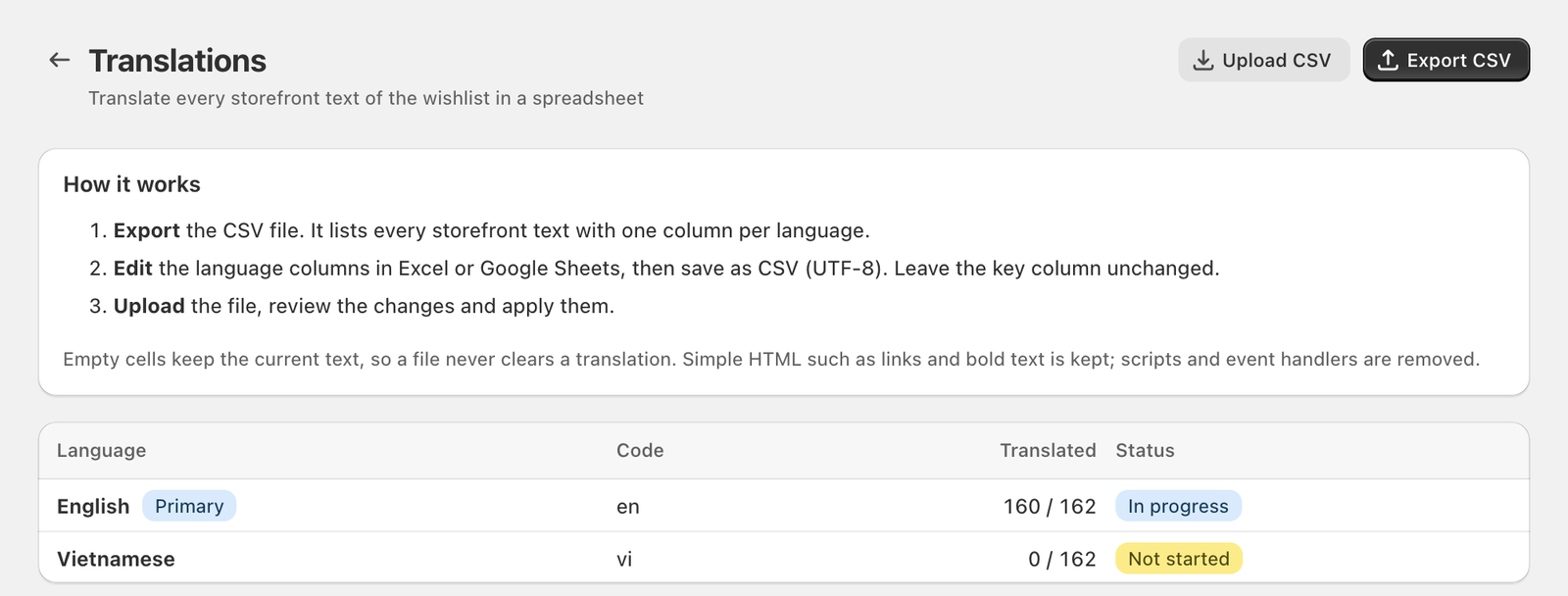
- Click Export CSV.
- Open the file in Excel or Google Sheets and fill in the language columns. Leave the
keycolumn as it is. - Save as CSV UTF-8. In Excel this is File → Save As → CSV UTF-8 (Comma delimited). Google Sheets uses UTF-8 already.
- Click Upload CSV and choose the file (up to 1 MB).
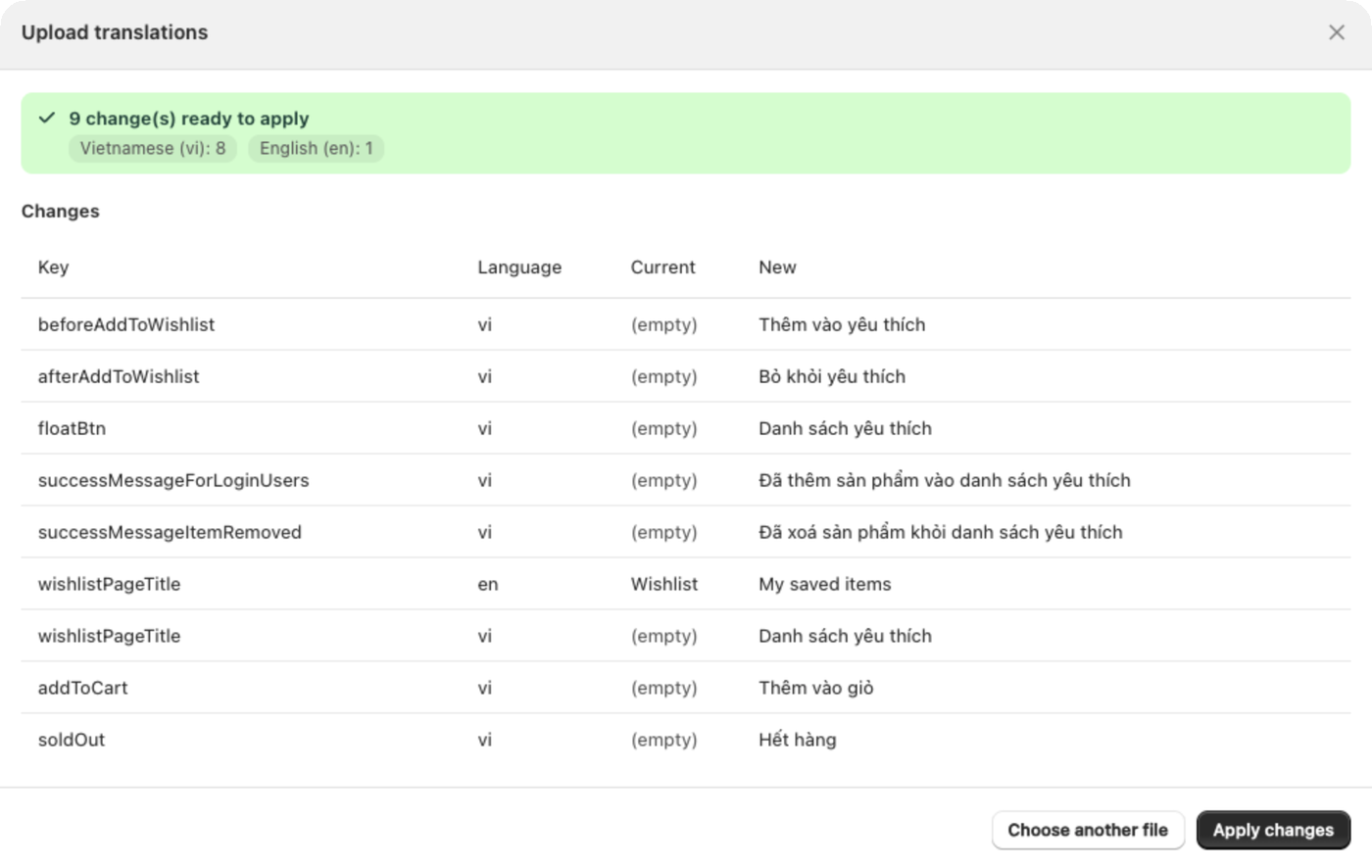
- Review the changes. The preview lists what will change: the key, the language, the current text and the new one.
- Click Apply changes.
Nothing is saved until step 6.
The file
| Column | What it is |
|---|---|
key | Which text this row is. Don't edit. |
section | Where it shows: Buttons, Notifications, Errors, Wishlist page, Share, Multiple wishlists, Collaborators, Product recommendations. |
default_en | The built-in English text, for reference. |
en, fr, de… | One column per language you can edit. |
Rules that keep your texts safe
- An empty cell changes nothing. A file can't clear a translation by accident. To shorten a text, write the shorter text.
- Simple HTML such as links and bold is kept. Scripts and event handlers are removed.
- Rows with an unknown key, columns for unpublished languages and columns your plan doesn't include are skipped, and the preview tells you about them.
- If the same key appears twice, the last row wins.
- Texts longer than 2,000 characters are skipped.
"Save it as CSV UTF-8"
This message means the file is in another encoding, usually because Excel saved it as plain CSV. Accented letters would turn into garbage. Save again as CSV UTF-8 and upload that file.
Still stuck? Email [email protected] with your store’s .myshopify.com address and we’ll set it up with you.